WIKINUSA APPLICATION GUIDE
Introduction
Looking to explore knowledge, dictionaries, and literature in indigenous and regional languages? With WikiNusa, you can seamlessly access Wikipedia articles, search word definitions on Wiktionary, and read open textbooks and folklore on Wikibooks across Indonesian and Pacific regional languages.
How to Install WikiNusa
-
Click the Google Play badge below to open the Google Play Store:

-
Locate the WikiNusa app page and tap "Install". Wait until the download finishes and the blue "Open" button appears.
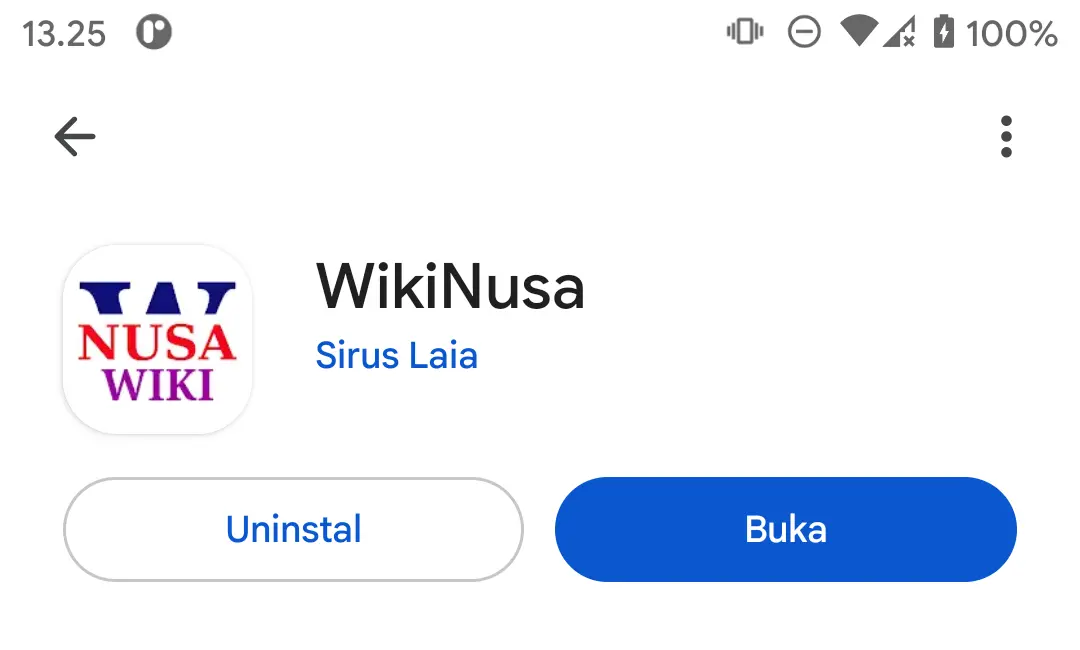 WikiNusa installation completed
-
Launch the app directly from Google Play or tap the WikiNusa icon in your device's app drawer.
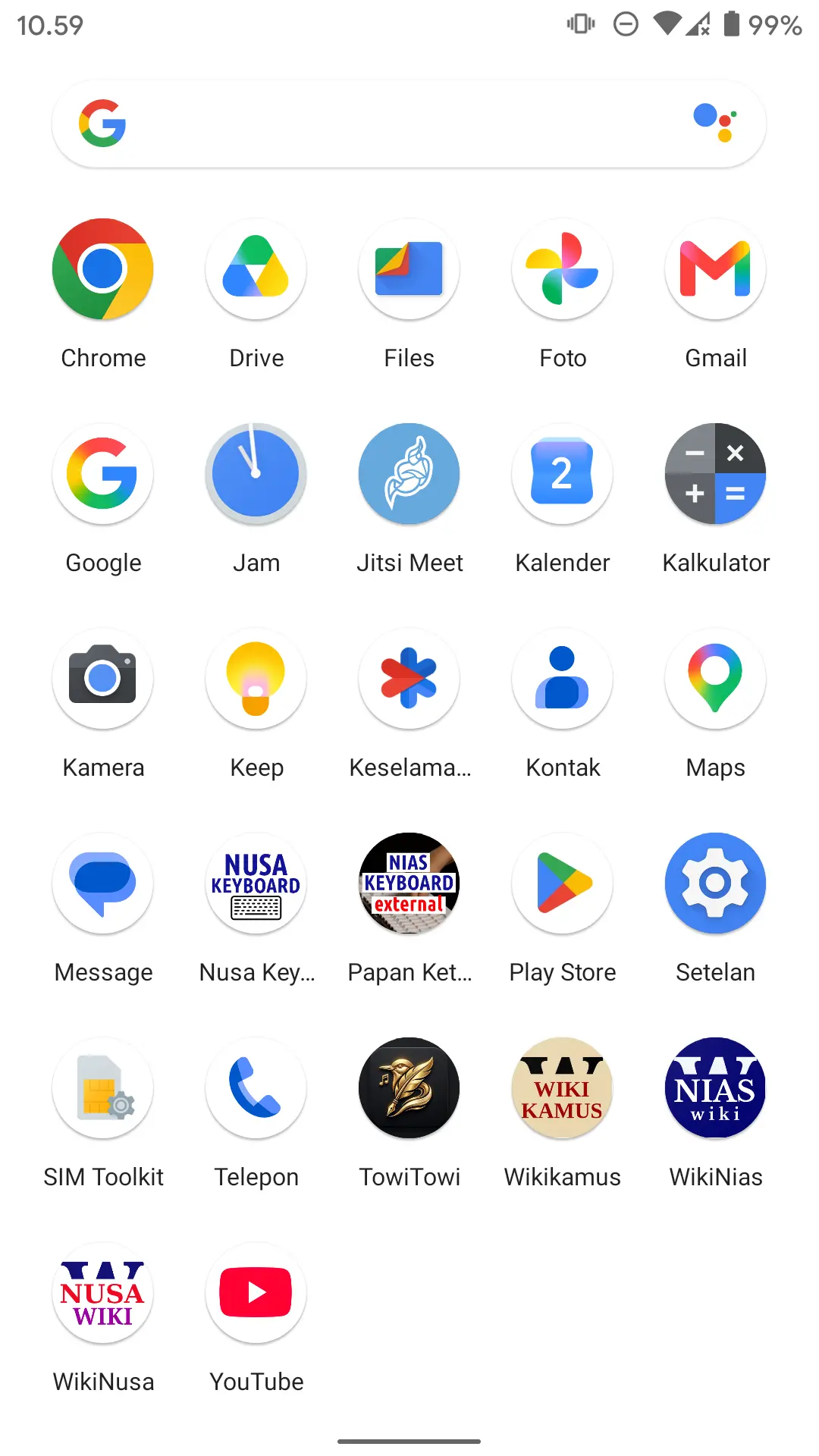 WikiNusa icon in the app drawer
- All set!
Launching & Onboarding
- Open your Android app drawer.
App drawer
- Tap WikiNusa. On the very first launch, you will be greeted by an introductory feature showcase.
- Explore the onboarding carousel:
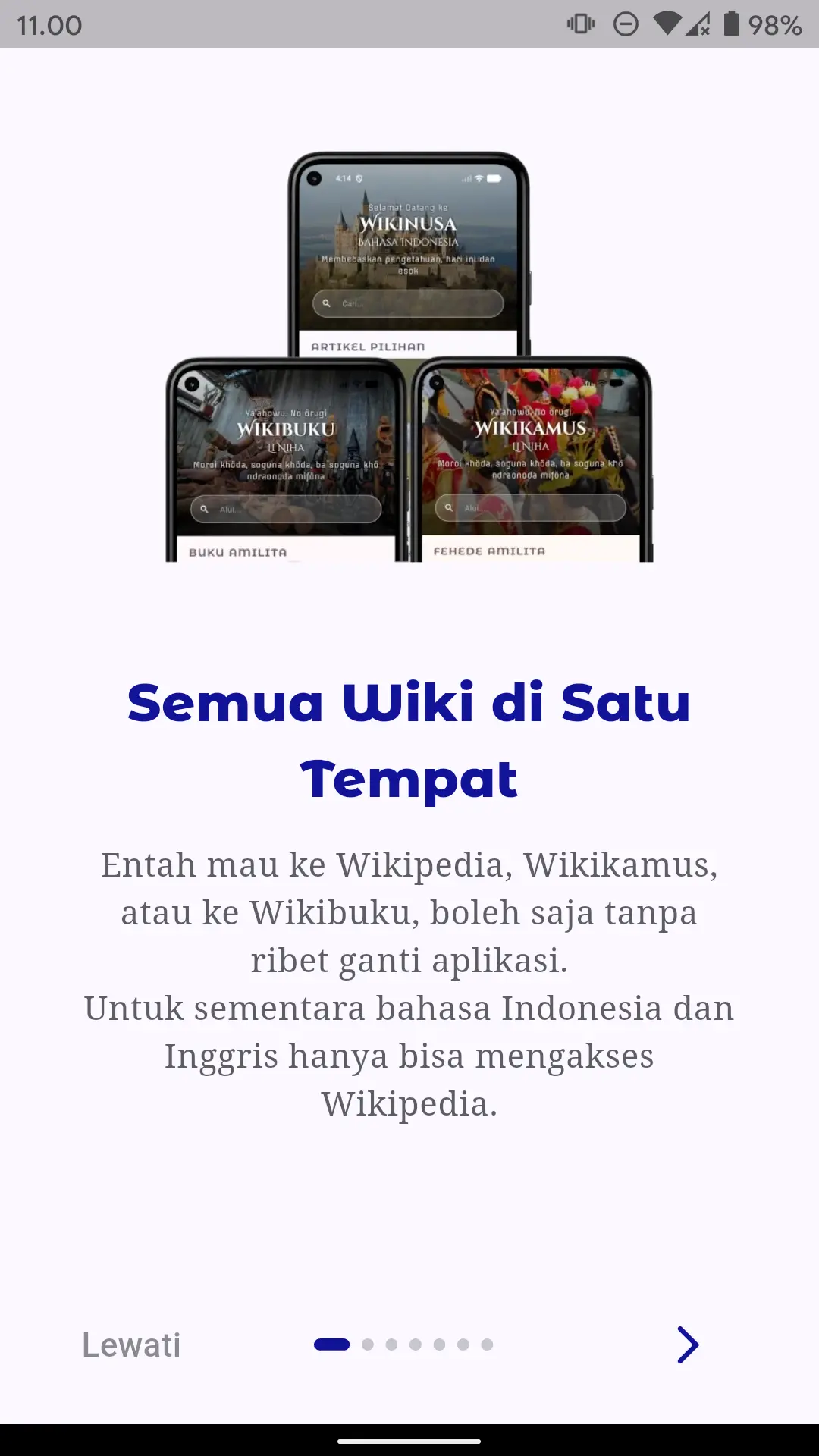
All wikis in one place: Wikipedia, Wiktionary, Wikibooks
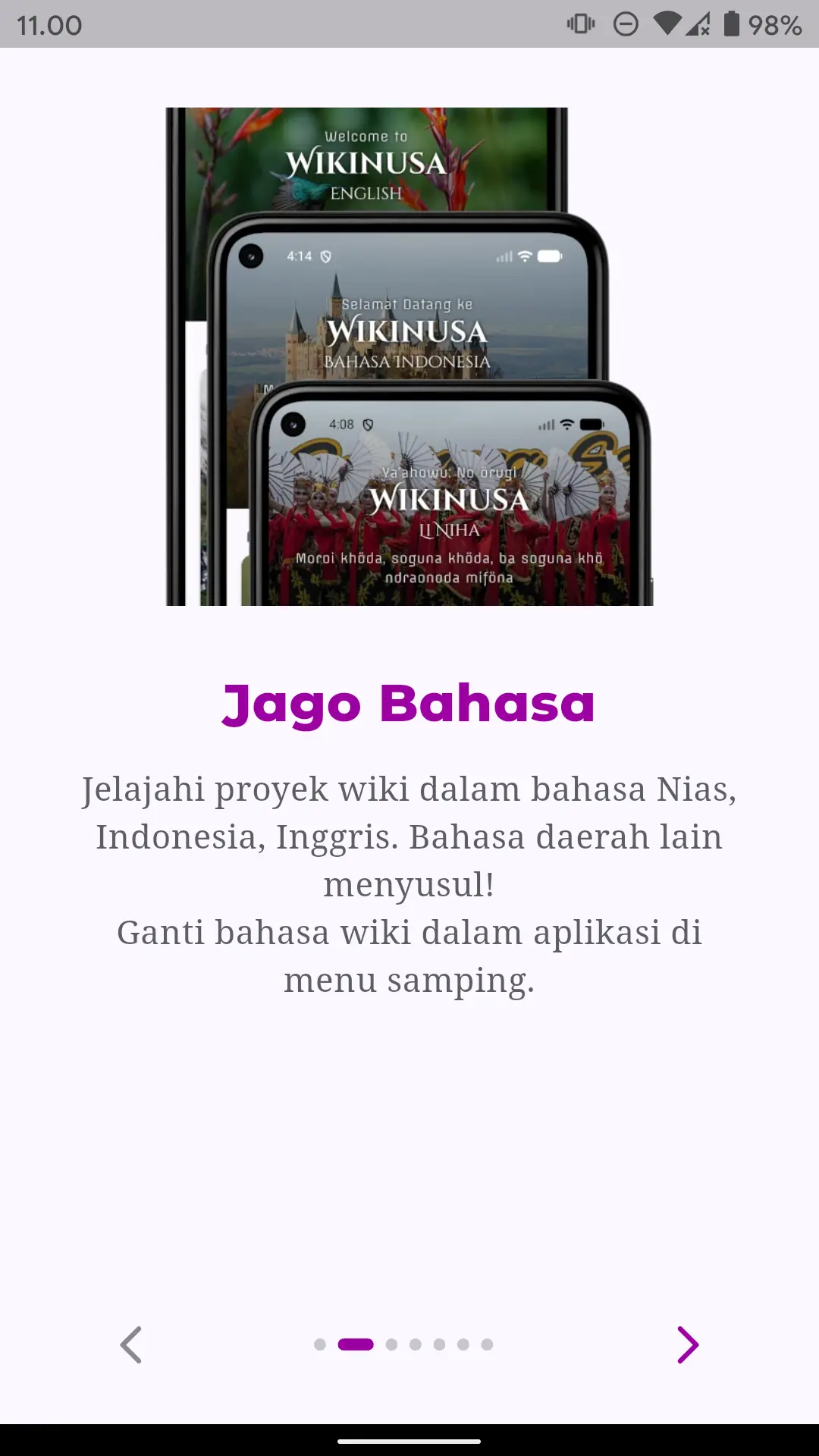
Multi-language support: Regional languages, Indonesian, English
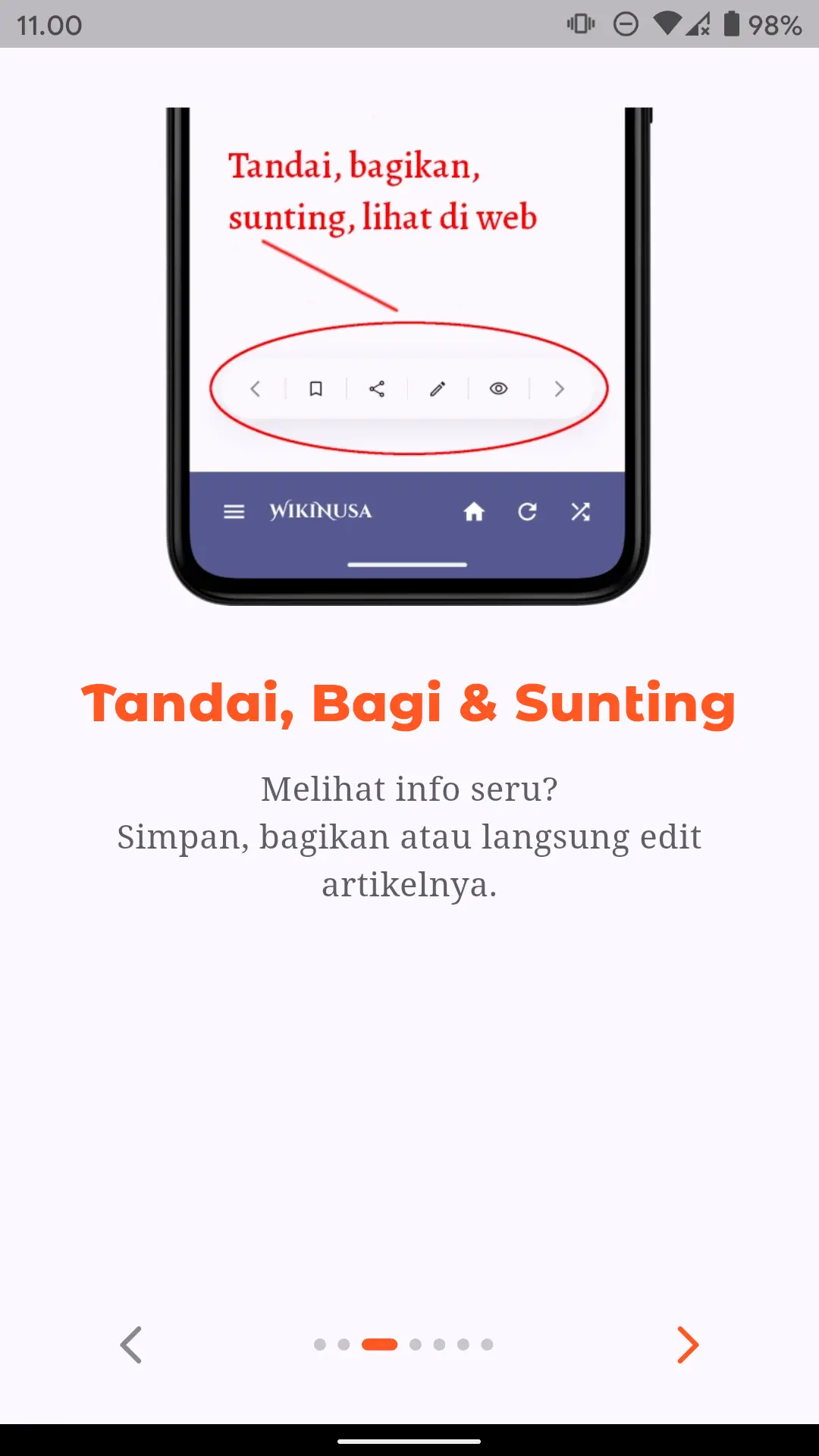
Bookmark favorites, share, and edit articles
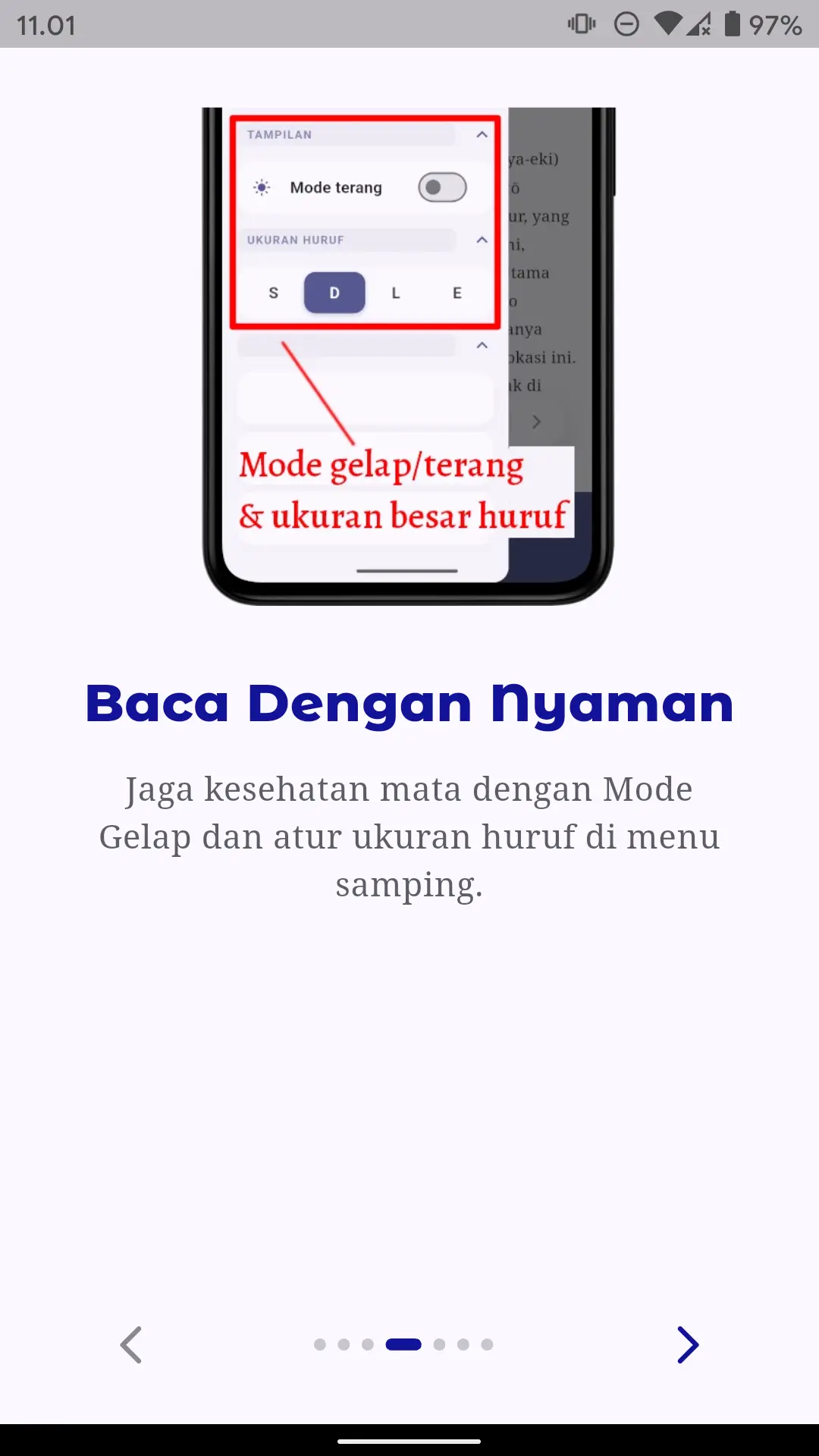
Dark/light theme mode and flexible font sizing
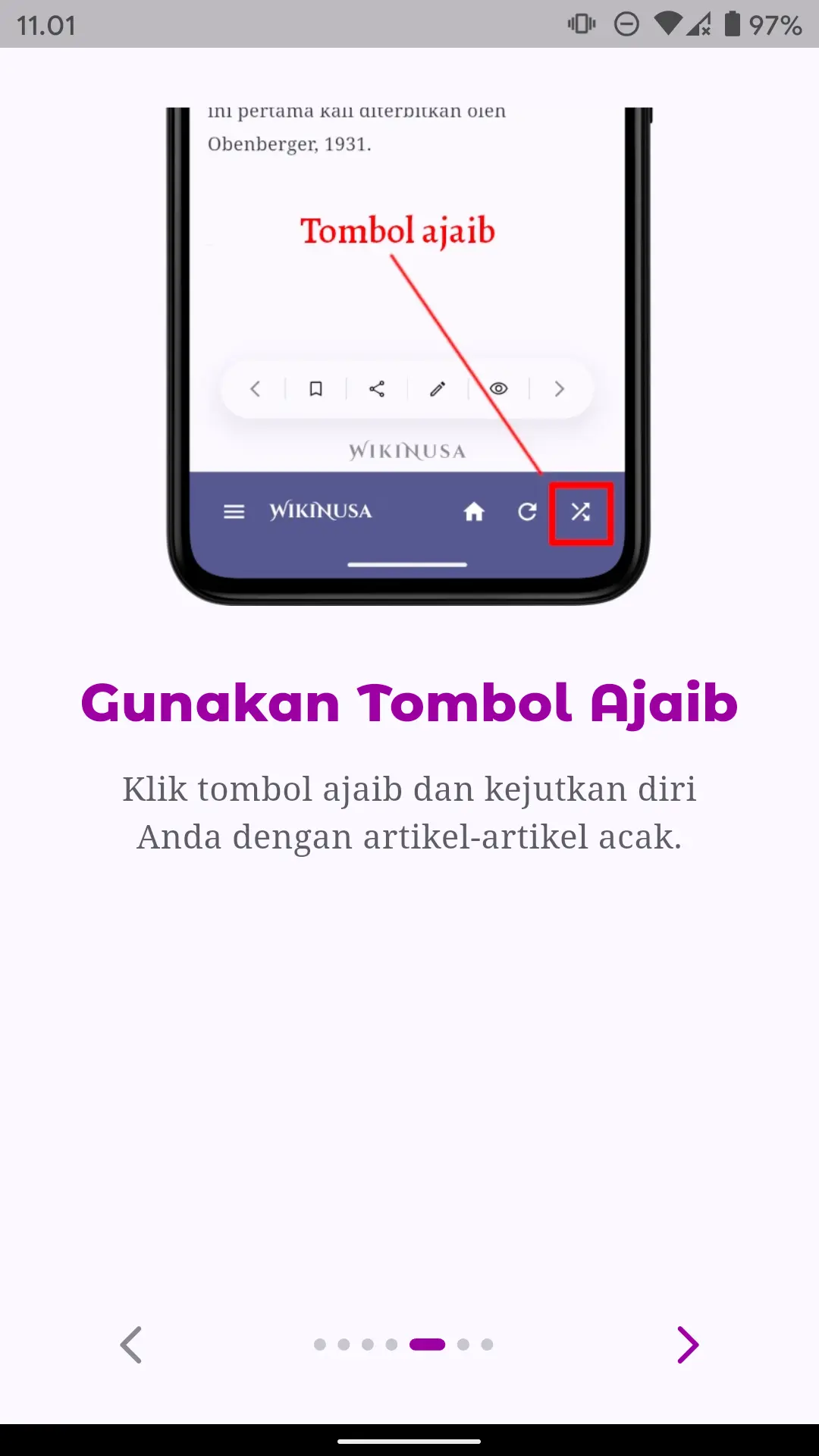
Randomizer button to explore serendipitous articles
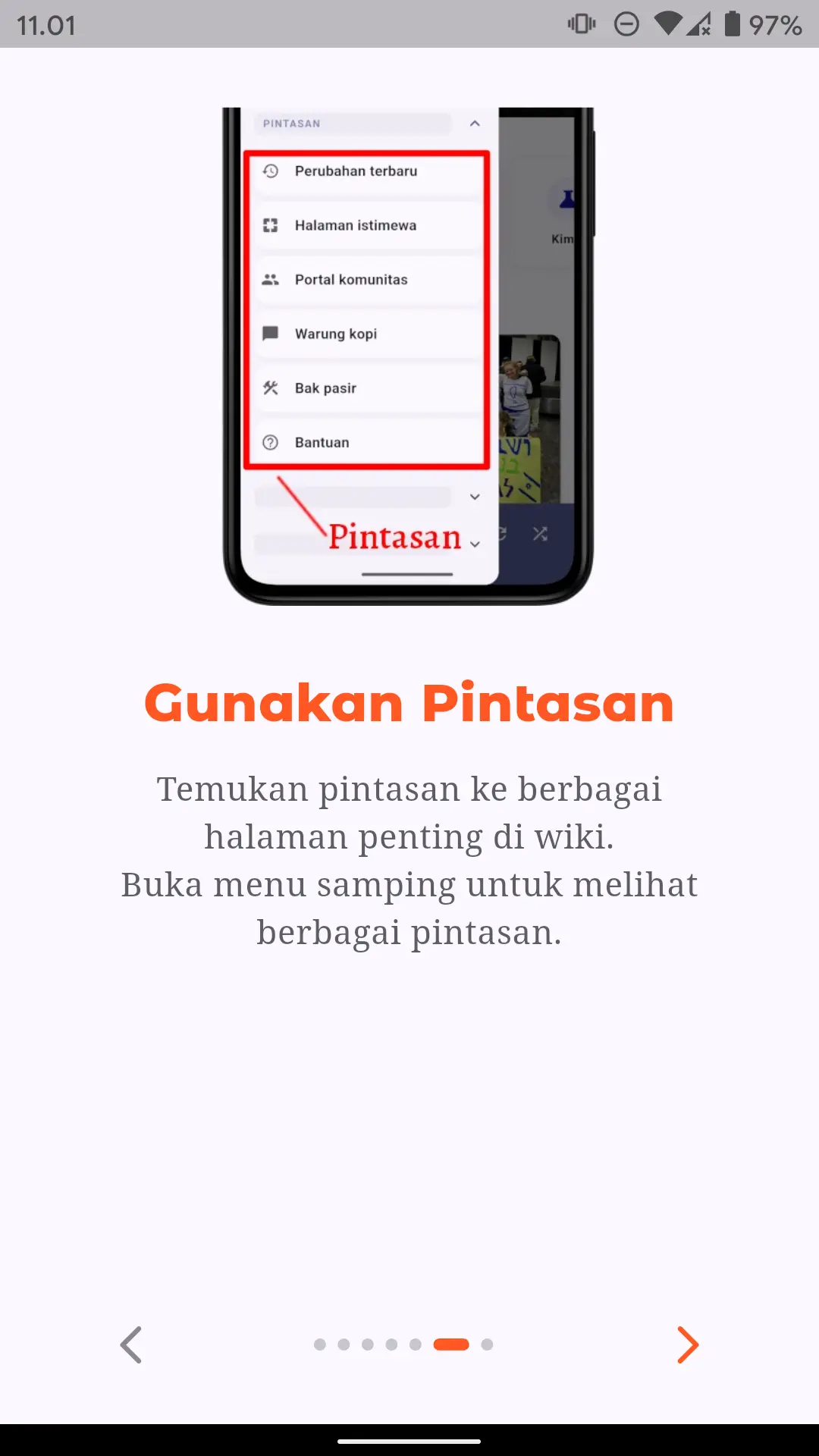
Quick shortcuts to essential community spaces
- Select your initial language preference (e.g. Nias, Javanese, Indonesian, or English).
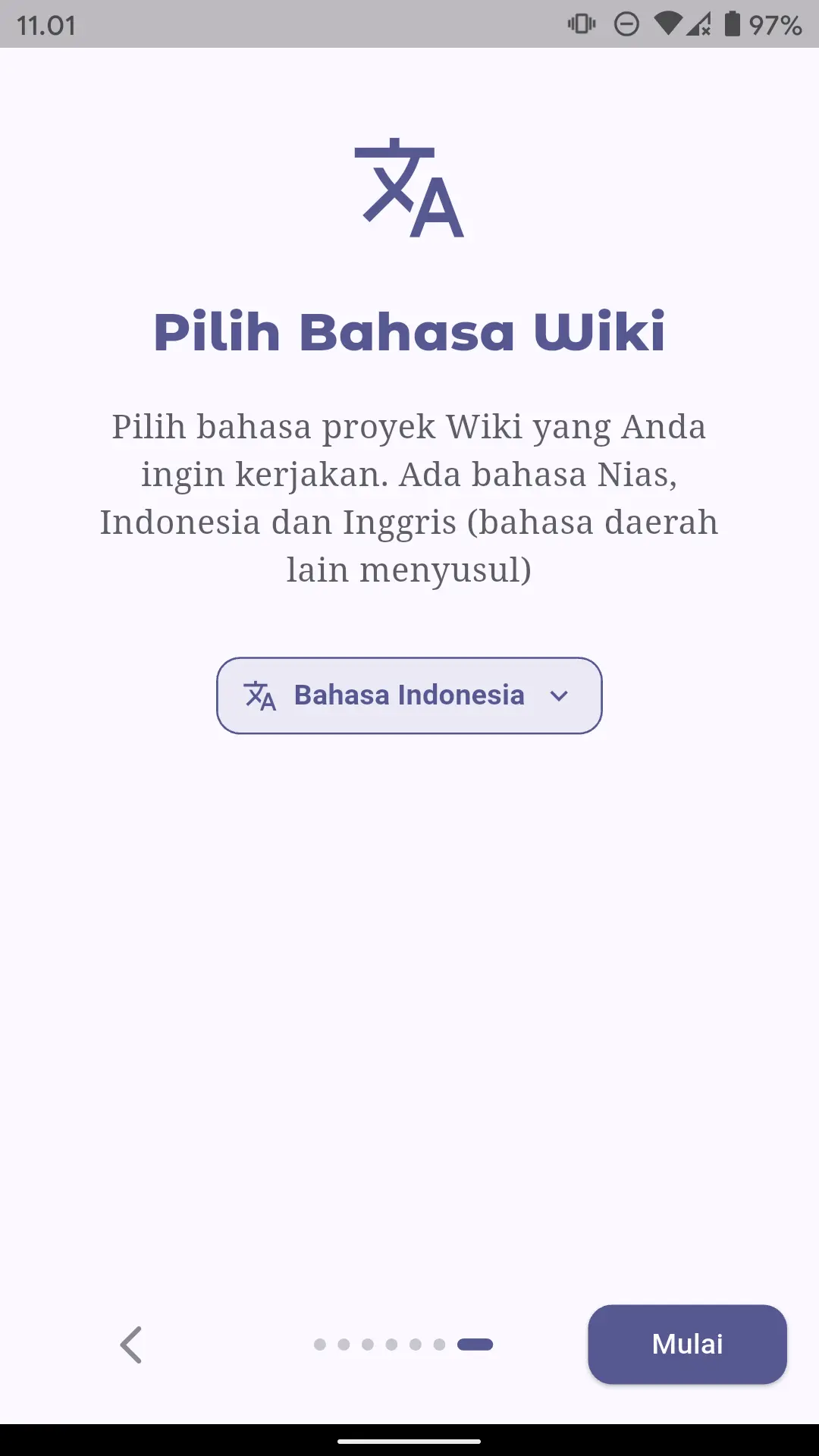
Select your preferred language
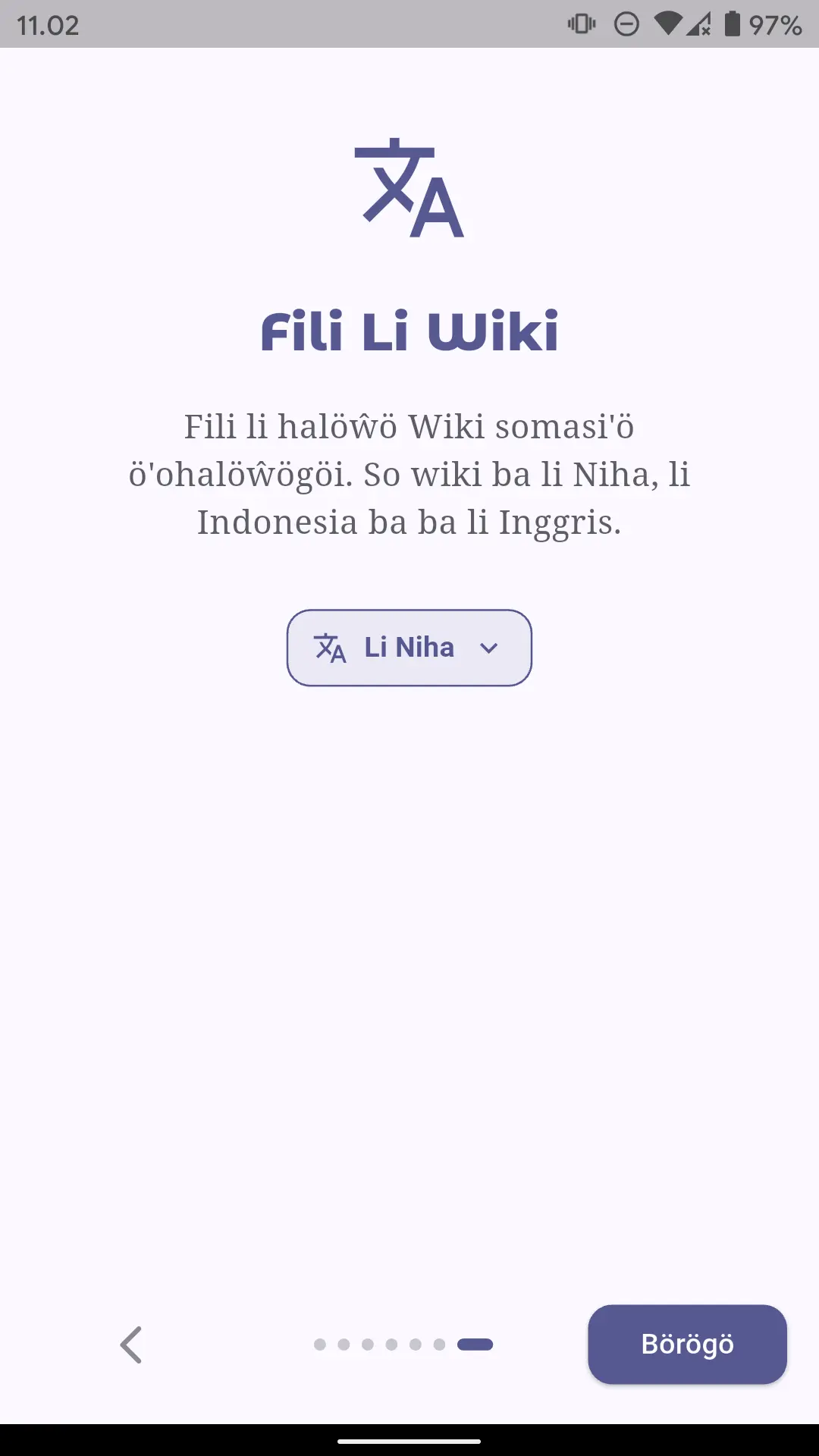
Language successfully set
Exploring the User Interface
-
Home Screens: Each wiki project features a tailored home screen layout with featured articles, pictures of the day, and portals.
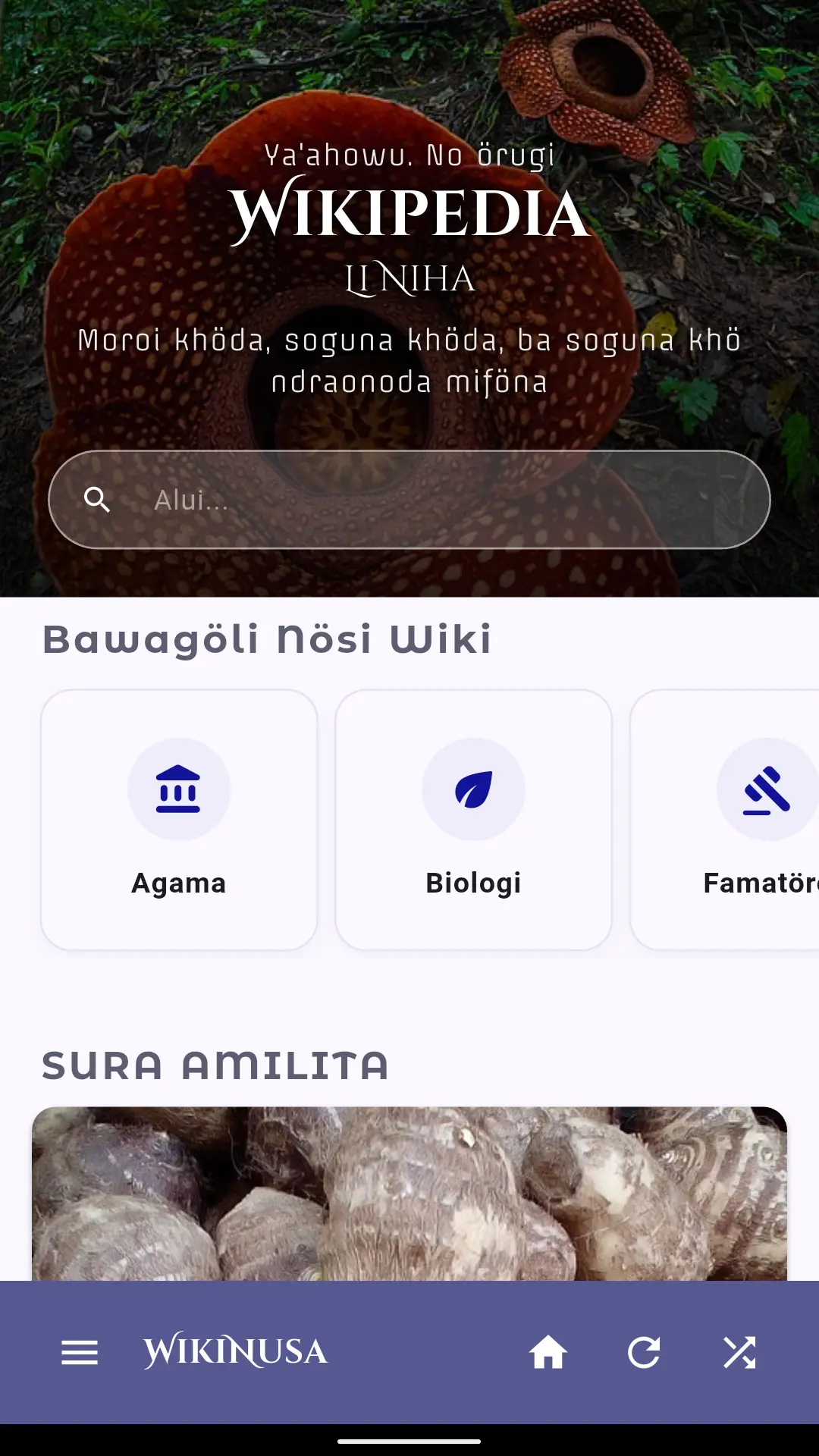
Wikipedia Home Screen
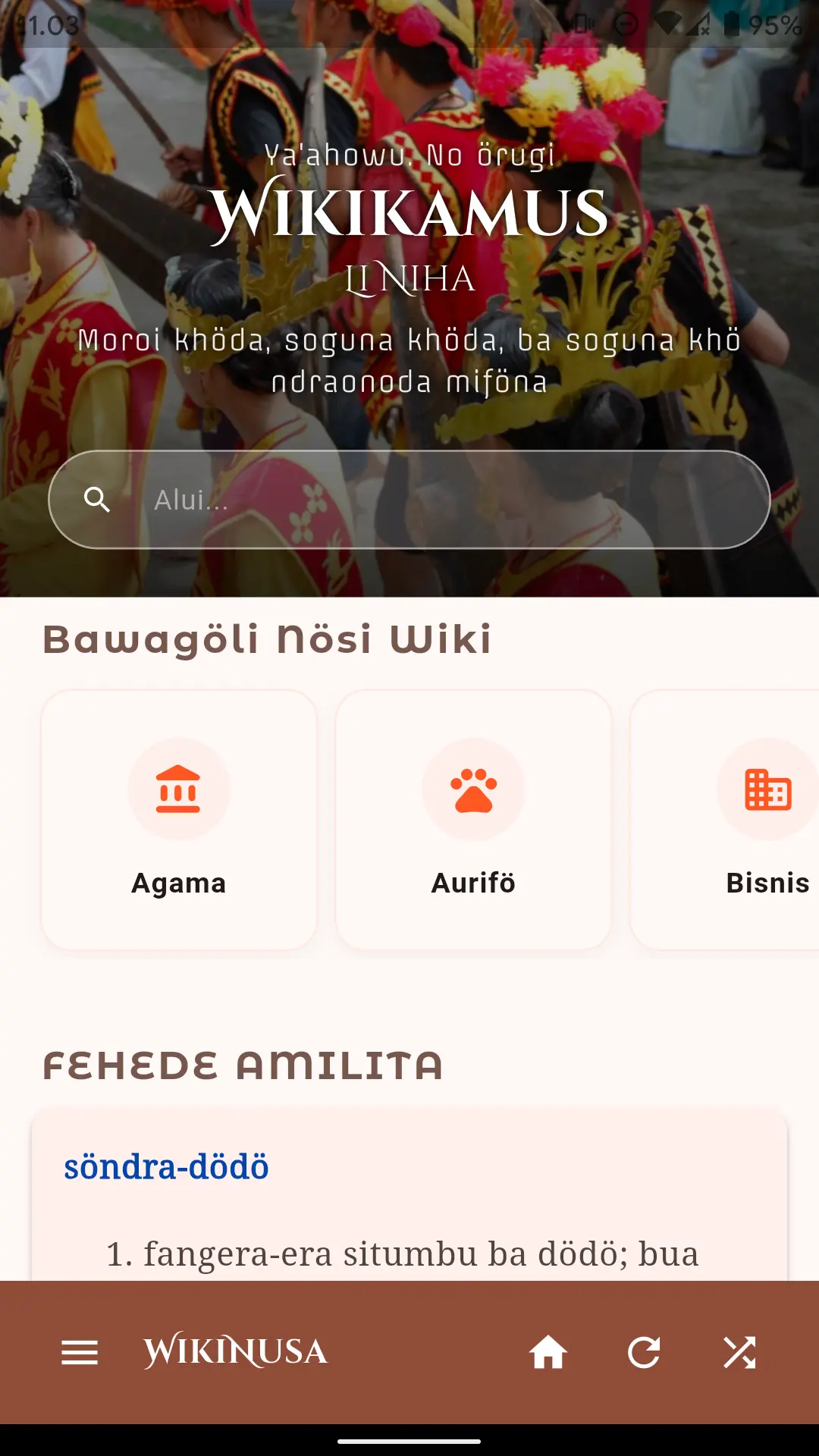
Wiktionary Home Screen
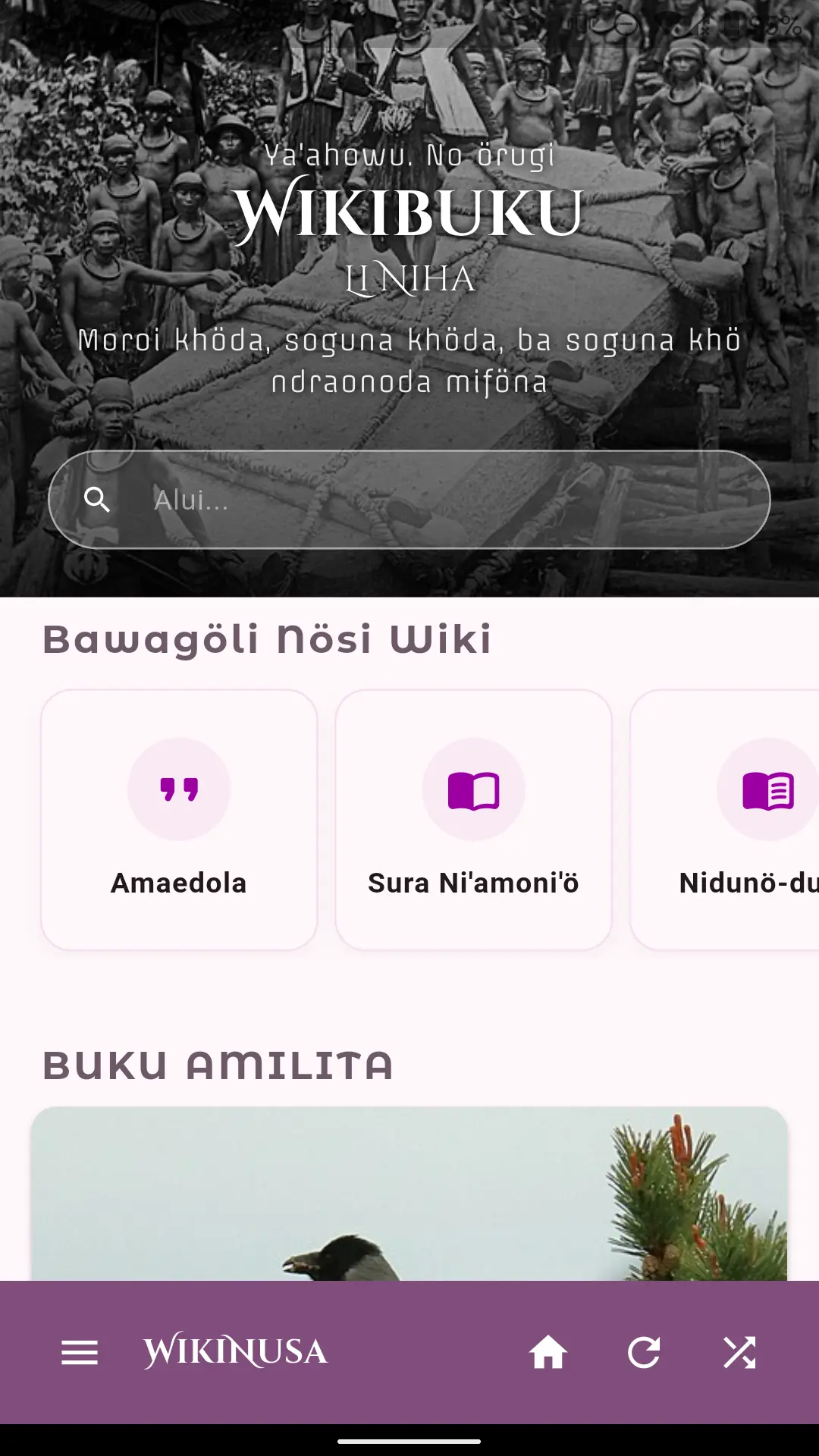
Wikibooks Home Screen
-
Bottom Navigation Bar: Side Drawer Menu, Home Screen, Reload Page, and the Magic Randomizer button (fetches a random article).
 Bottom navigation bar
-
Side Drawer Menu:
Provides fast access to
Quick Shortcuts(Create Page, Bookmarks),Project Shortcuts(Portals, Recent Changes),Wiki Projects(Wikipedia, Wiktionary, Wikibooks),Modules(WikiChat, Newsletter, Crosswords, Course, Gallery),Language Picker,Theme Toggle(Light/Dark),Font Size Controls,About WikiNusa, andWikimedia Login / Logout.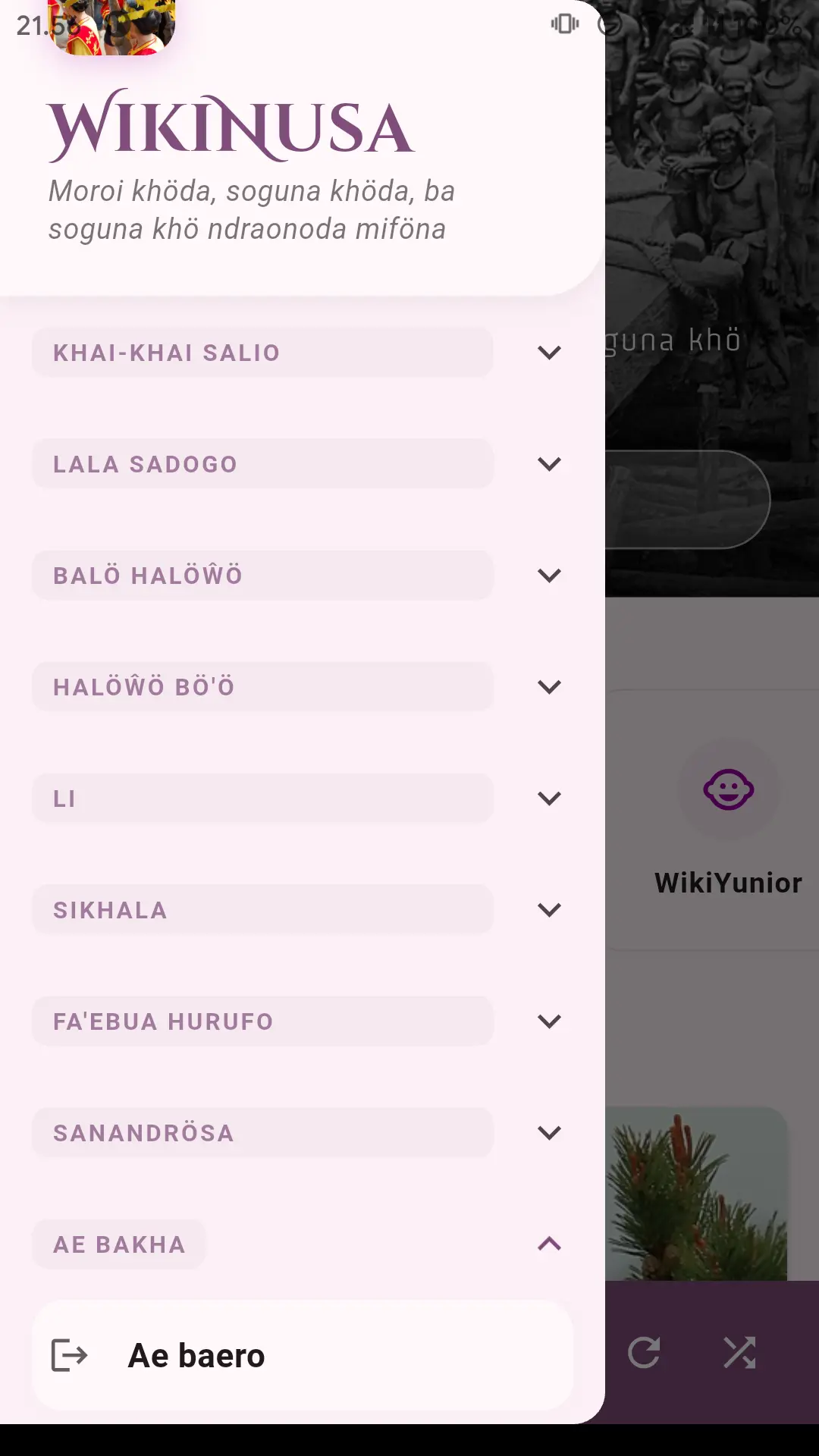 Side Drawer Menu
-
Article Reader Screen:
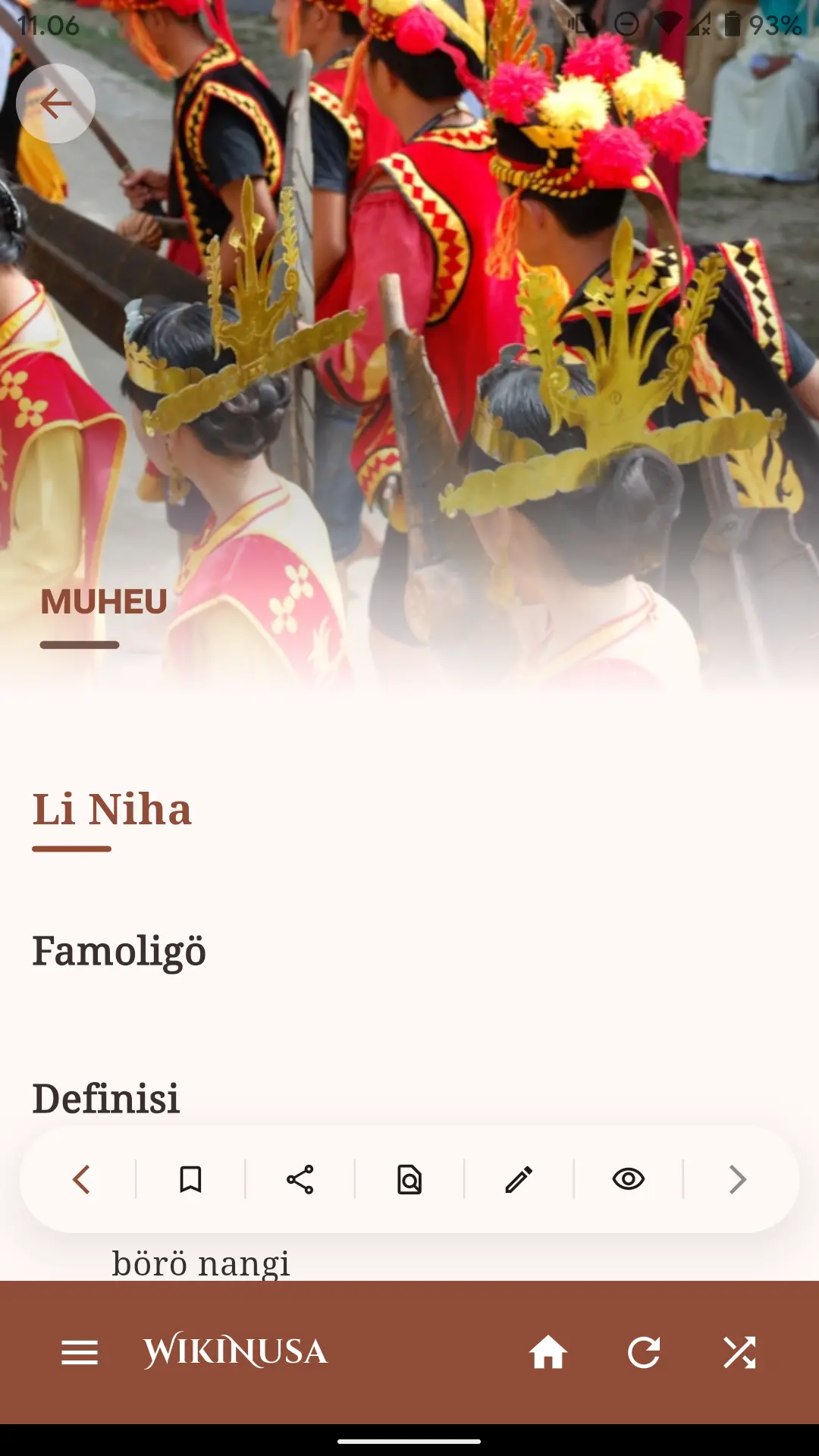 Article Screen
- Floating Action Button (FAB) on article pages: Tap the expandable action bar to Bookmark, Share, Search in page, Edit in-app, or Open in external web browser.
Wikimedia Authentication (Login)
-
Open the Side Drawer Menu. The login action button is located at the bottom of the drawer.
Side drawer login section
-
Tap the LOGIN (AE BAKHA) button. The official Wikimedia OAuth authentication page will open.
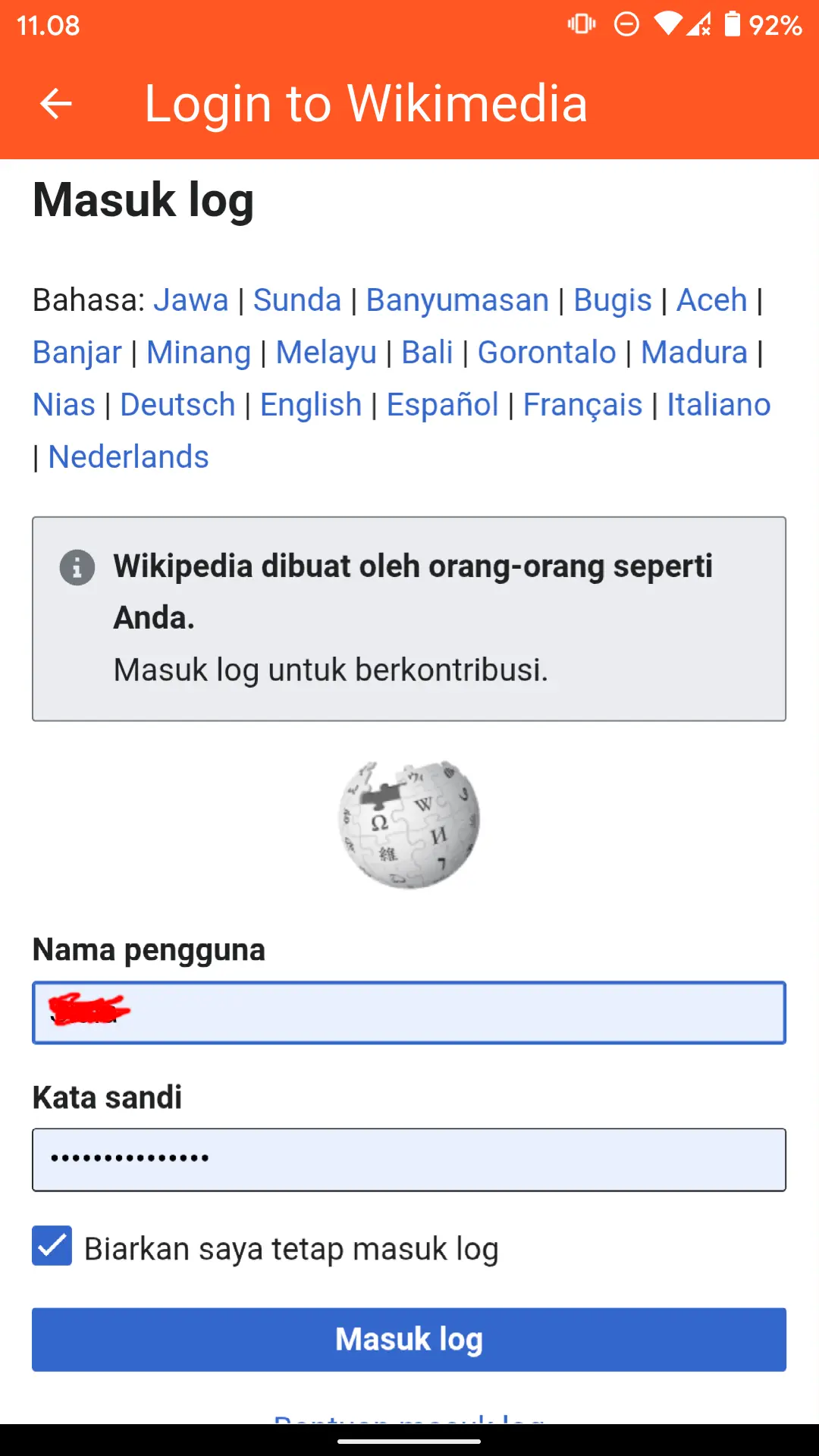 Wikimedia official login screen
- Enter your Wikimedia username and password, then tap LOG IN.
- If you have enabled Two-Factor Authentication (2FA), input your authentication code.
-
Authorize the WikiNusa app to read and edit articles on your behalf.
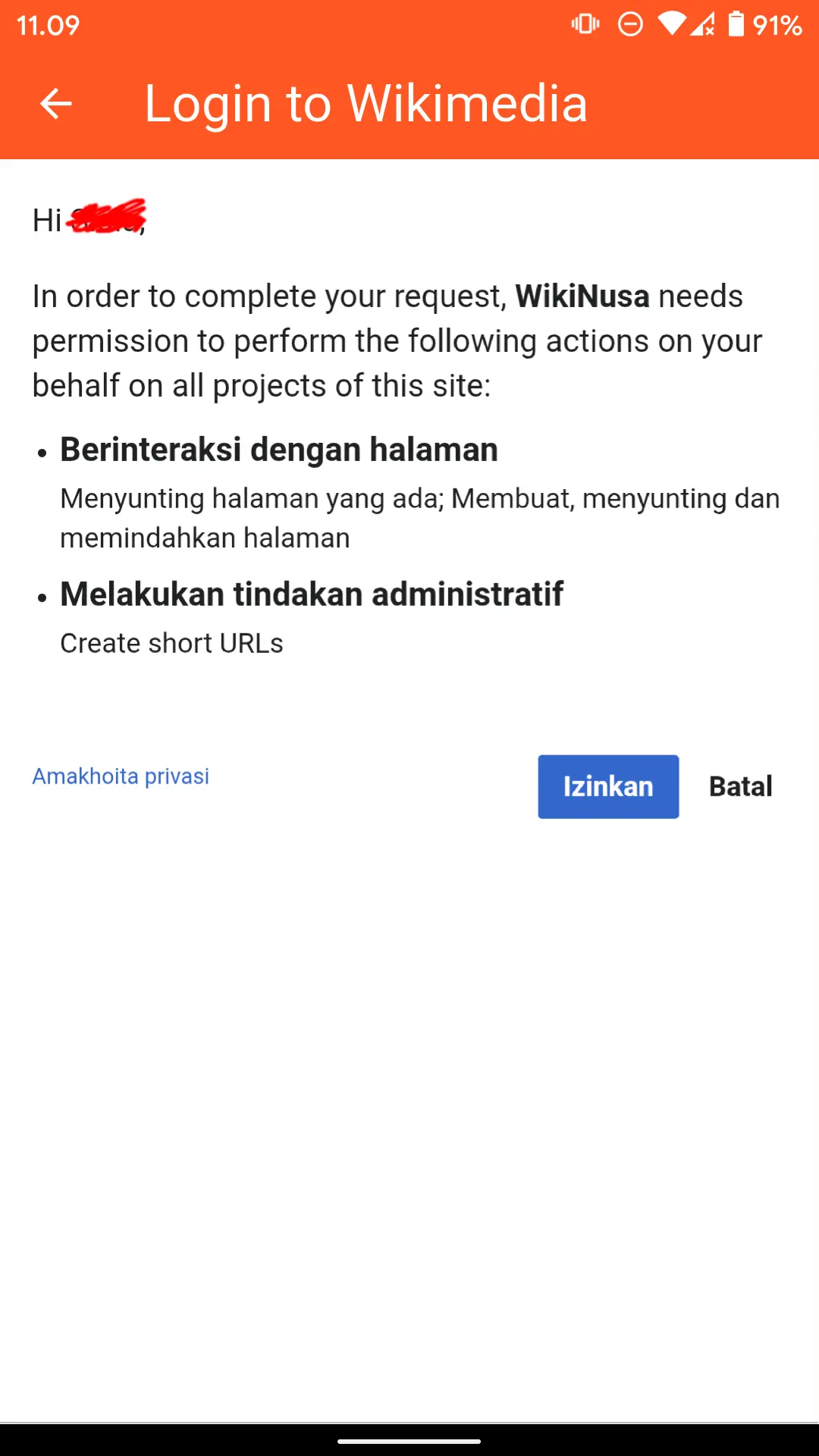 Authorizing Wikimedia access
- Tap Allow.
You are now authenticated! You can publish direct wiki edits from inside the app without being redirected to an external browser.
Note: Logging in is completely optional. You can browse, read, search, play crosswords, and access all modules without creating an account.
Home Screen Navigation
-
Search Header: Use the top search bar to query articles, definitions, or books across the active wiki.
Search bar located in the header
-
Home Sections: Featured articles, Pictures of the Day, This Month in History, and Did You Know trivia.
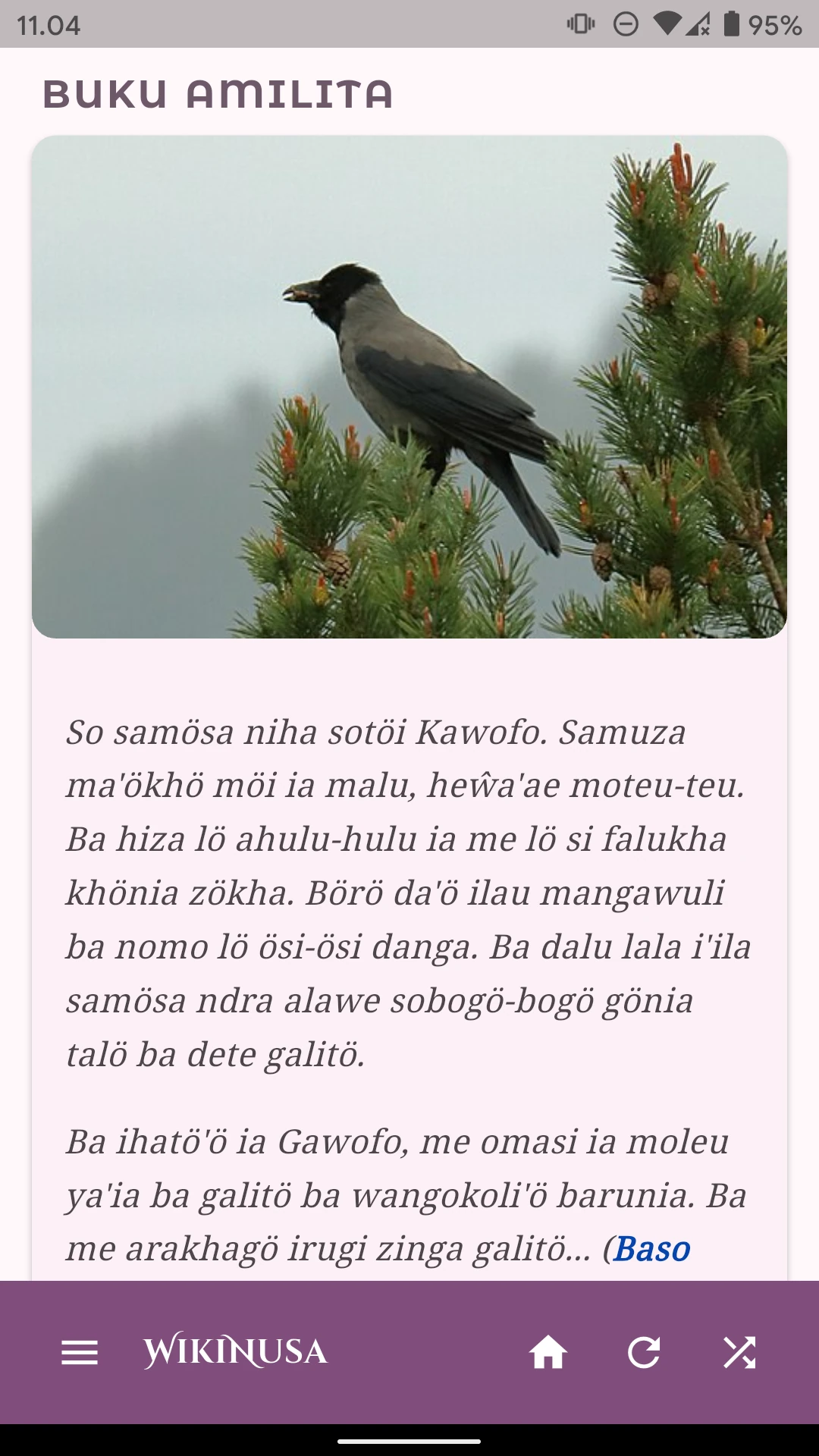
Featured Book on Wikibooks
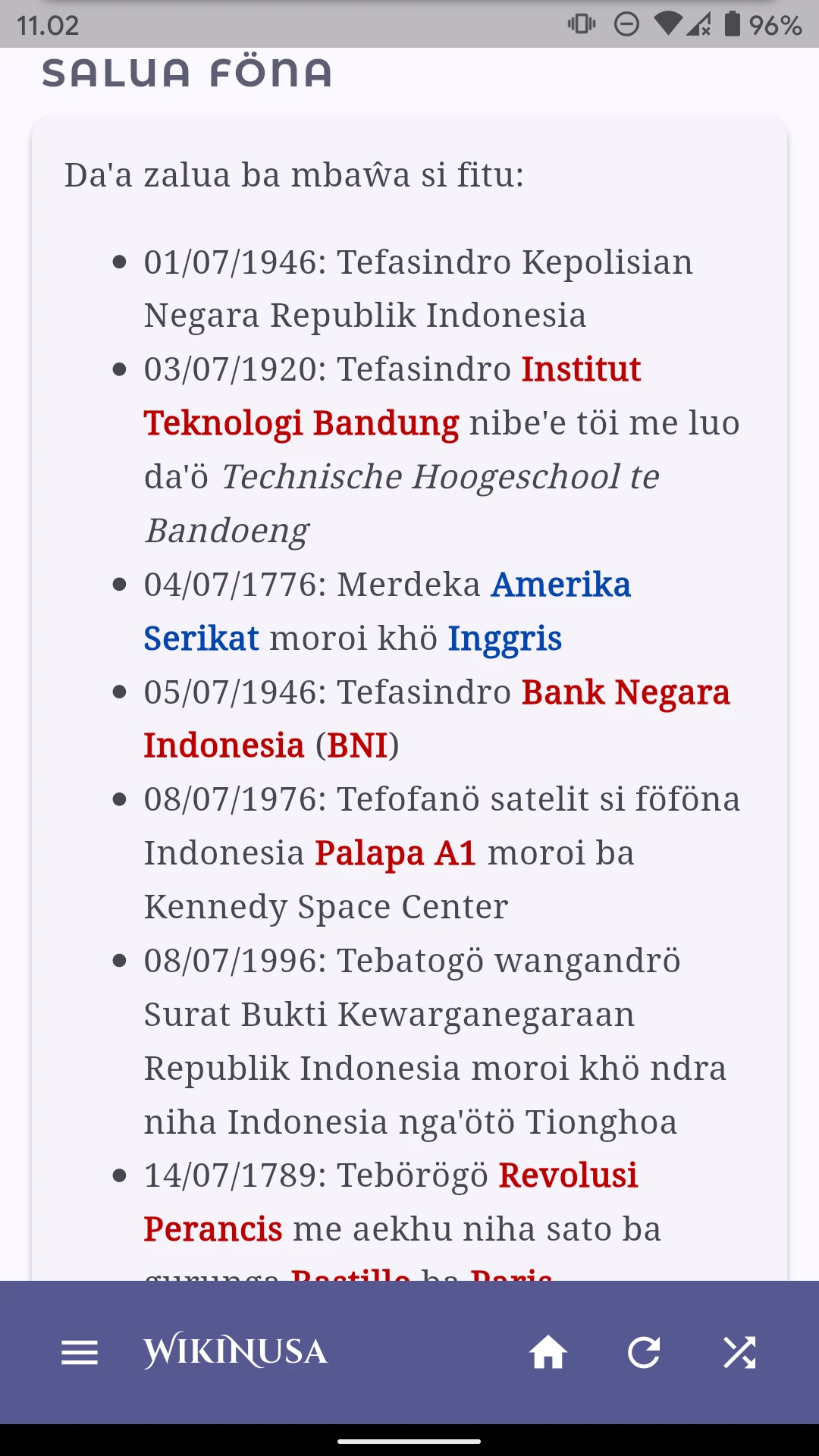
This Month in History on Wikipedia
Core Features
How to Create a New Article or Entry?
There are two convenient methods:
- Tap the START (BÖRÖGÖ) button at the bottom of the Home Screen.
- Or open the Side Drawer Menu and select Create New Page under Quick Shortcuts.
The creation form automatically adapts to whether you are writing an encyclopedia article (Wikipedia), a dictionary headword entry (Wiktionary), or a book chapter (Wikibooks).
💡 Tip: Check the Nusa Keyboard Guide to learn how to type special regional characters like ö and ŵ and use wiki markup shortcuts.
How to Edit Existing Articles?
While viewing any article, tap the Pencil Icon on the floating action button to open the native in-app editor.
Article screen showing the action bar
How to Search Articles and Words?
- Navigate to the Home Screen.
- Type your keyword into the search bar. Real-time autocomplete results will appear instantly.
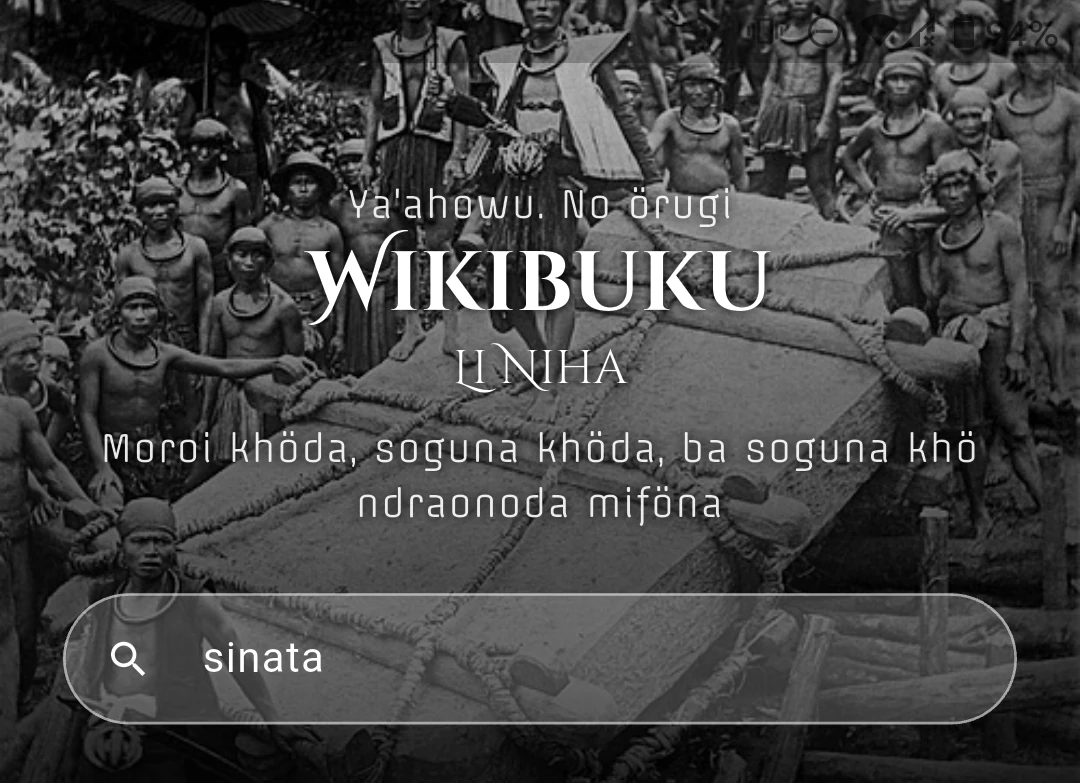 Search results displaying matching pages
How to Bookmark Articles?
Tap the Bookmark Icon on the floating action button while reading. All bookmarked pages are saved locally and can be accessed anytime from the Side Drawer.
Why Authenticate with Wikimedia?
Authentication is only required if you wish to submit edits directly under your registered Wikimedia account. If you prefer, you can also edit anonymously or via an external browser.
Wiki Markup & Editing Guide
Bold Text
Enclose text in three single quotes ('''), for example '''bold text'''.
Italic Text
Enclose text in two single quotes (''), for example ''italic text''.
Section Headings
Surround section titles with equal signs (=). Use == Heading 2 ==, === Heading 3 ===, etc.
== Section Title ==Internal Wikilinks
Wrap target titles in double square brackets ([[...]]), e.g. [[Nias]]. For piped custom anchor text, use a pipe (|):
[[Village|Traditional Village]]General Community Discussions
Please post general questions and announcements in the community village pump (e.g. Monganga Afo or equivalent discussion page in the drawer menu).
Wikipedia
What is the difference between Wikipedia and Wiktionary?
Wiktionary is a linguistic dictionary explaining word definitions, etymology, phonetic pronunciations, and grammatical inflections.
Wikipedia is an open encyclopedia providing comprehensive, in-depth narratives on historical events, notable figures, scientific concepts, geography, and living culture.
Wiktionary
Dialect and Context Tags
Regional entries utilize templates to mark dialectal variations or specialized terminology. For instance, Southern dialect terms can be tagged with {{sel}}, while Catholic ecclesiastical terms use {{kat}}.
Adding Images to Dictionary Entries
Include images using standard MediaWiki syntax with a localized caption:
[[File:hilimondregeraya.png|thumb|Hilimondregeraya Village, South Nias]]Audio Pronunciation Files
Pronunciation audio templates are placed above definitions using:
{{IPA|ipa=|audio=pronunciation_filename.ogg}}Wikibooks
What Content Belongs on Wikibooks?
All long-form literary works and educational materials that exceed the encyclopedic scope of Wikipedia or dictionary scope of Wiktionary: oral poetry, traditional chants, folklore, short stories, essays, academic papers, and textbooks.
WikiChat (Community Talk Pages)
WikiChat is a real-time discussion module fully integrated with official Wikimedia talk pages (such as village pumps and user discussion namespaces). Contributors can communicate, exchange advice, and coordinate wiki initiatives seamlessly through an intuitive messaging experience.
How to Access WikiChat?
Open the Side Drawer Menu and select Chat / Obrolan under Modules. When unread talk messages are received, a red notification badge will alert you.
Starting a Discussion Topic
- Tap the Add Topic (+) button in WikiChat.
- Enter a topic subject title in the header field.
- Compose your message in the body field.
- Tap Send. If prompted by Wikimedia CAPTCHA security, enter the verification characters to save your topic to the official wiki talk page.
Replying and Quoting Messages
On any message within a topic thread, tap Reply. You can quote snippets from previous replies to keep discussion threads structured and organized according to standard MediaWiki indentation conventions.
Interactive Crosswords
The Crosswords module provides educational word puzzles built dynamically from authentic regional vocabulary and definitions stored in local Wiktionary databases.
How to Play Crosswords?
- Open the Side Drawer Menu and tap Crosswords.
- Choose from daily, monthly, or yearly puzzle collections.
- Tap any square on the puzzle grid. The active cell will illuminate, and corresponding Across or Down clues will appear in the clue banner.
- Type letters using your on-screen keyboard. Correct words are validated with interactive visual cues and sound effects.
- If you need assistance, tap Hint to verify or reveal tricky letters.
Android Home Screen Widget
WikiNusa includes a native Android home screen Crossword widget. Pin the widget to your device's home screen to see the daily puzzle word challenge at a glance without having to launch the app first.
Language Course
For learners eager to study regional languages from scratch or master vernacular grammar, WikiNusa offers structured interactive language courses (such as the Sulu series on Wiktionary and Wikibooks).
Features & Learning Methodology:
- Thematic Units: Lessons progress logically from practical everyday greetings and family relationships to numerical systems, calendar expressions, and dialogue sentences.
- Native Audio Pronunciations: Tap the audio player icon beside vocabulary items to hear authentic pronunciations recorded by mother-tongue speakers.
- Interactive Exercises: Reinforce your retention through quizzes, flashcards, and word-matching exercises at the end of each lesson.
Cultural & Media Gallery
The Cultural Gallery module curates high-resolution media collections directly from Wikimedia Commons. It celebrates indigenous cultural heritage, vernacular architecture (such as omo hada ancestral houses), megalithic stone monuments, traditional weaving, performing arts, and pristine natural landscapes.
Gallery Features:
- Fluid Touch Carousel: Swipe left and right effortlessly to explore curated collections.
- Rich Metadata & Attribution: Every image includes cultural descriptions, historical background, photographer credits, and official Creative Commons licenses.
- Full-Screen Zoom Viewer: Tap any photo to expand into full-screen mode and pinch-to-zoom to admire intricate carving details and high-resolution textures.